Options
The Options tab presents more advanced settings.
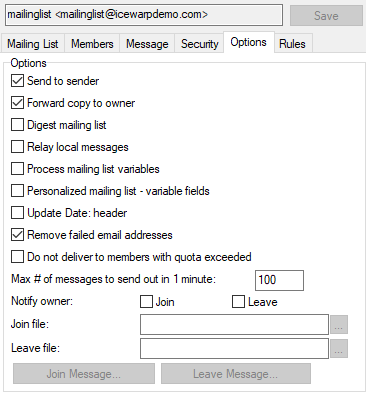
Figure. Mailing list level management: Options tab.
|
Field |
Description |
|---|---|
|
Send to sender |
When a list member sends a message to the list, the user will also receive a copy if this option is checked. |
|
Forward copy to owner |
If the owner of the list is not a member of the list then checking this option will copy messages to the owner. However, it is recommended for the list owners to subscribe to the lists they own. |
|
Digest mailing list |
Checking this option will allow a user to subscribe to this mailing list as a Digest service. At midnight a single message containing all the messages of the day is sent to the members. |
|
Relay local messages |
Checking this option will instruct IceWarp Server to send all messages to local users via the outgoing queues and back to the local server. This means that all locally-bound messages will go through all the standard IceWarp Antivirus, Antispam, and Rules processing. |
|
Process mailing list variables |
Check this option if you want to allow variables (included in the <install_dir>/examples/variables.dat.html file) to be processed within messages sent to this list. Note: This option has to be enabled the Personalized mailing list... feature to work properly. |
|
Personalized mailing list - variable fields |
The personalized mailing list option lets you customize your messages with variables linked to the members of the list. Variables included within a message, in the format {{VariableName}} will be replaced with the corresponding value of the variable for each member. Variables are set when you define a member (see Members ). Personalized mail example: In the above example the values for variables name, totalsales and pricecode will be replaced by the appropriate values. Note: The Process mailing list variables option has to be enabled. |
|
Update Date: header |
When using vast mailing lists, last messages can be significantly older than ones sent earlier. Check this box if you want to have the time of sending updated. |
|
Remove failed email addresses |
Check this option if you want IceWarp Server to permanently remove any members from the list if it encounters a permanent error while attempting delivery. Note: Check this option if you want IceWarp Server to permanently remove any members from the list if it encounters a permanent error while attempting delivery. To deal with this situation and enhance this feature capabilities, see the Remove Dead Emails - Soft Failure Counter below. Note: If you are using a database to store your lists you must also have specified the SQL to delete a user from the database see Mailing List . Note: Dead email addresses are not removed immediately after the first unsuccessful delivery attempt. They are removed before the next delivery action. Note: This option does not work in the case the Deliver messages via relay server when direct delivery fails option (Mail Service > SMTP Service > General) is enabled. |
|
Do not deliver to members with quota exceeded |
You can set users mailbox limits. (Size, number of delivered messages, etc.) Check this box if you want to exclude mailing list members with any of these limits exceeded from obtaining messages (until they "clean" their mailboxes). |
|
Max # of messages to send out in 1 min. |
Enter a non-zero number here to limit the number of messages that this list will send within one minute. This allows you to implement basic flow control for outgoing messages if your list becomes large (say 10000 members) |
|
Notify owner |
Check the Join and/or Leave boxes to automatically send a notification of these events to the list owner. (Applies in the case, the administrator has setup a listserver account.) |
|
Join & Leave Files |
Specify fully qualified file names to customized Join and Leave files and they will be used to create messages to new and departing members of the list. You can use the buttons bellow to edit these files once they have been specified. |
|
Join message |
Press this button to define a message that is sent to all users joining the mailing list. |
|
Leave message |
Press this button to define a message that is sent to users leaving the mailing list. |
Remove Dead Emails - Soft Failure Counter
When using Source: Members from database (the Mailing List tab), you can use queries that:
- Will select all mailing list members that have a "soft failure counter" less than e.g.: 3
- Use (only) these users as mailing list members
- Raise the counter in the case, another fatal error occurs
In addition, you can create a scheduled script that will check functionality of all email addresses with the counter higher than e.g.: 3. It can either reset the counter (if the check is successful), increase it (if the check is not successful) or even (if the counter reaches some higher value) remove such an account.
Queries example:

